Controls and Shortcuts
Nostalgia Play supports fully mapped controls for both keyboard and Gamepad inputs. Connect a standard USB or Bluetooth controller at any time to play.
START MENU
Access the START MENU from the system selection carousel by pressing Enter (keyboard) or Start (gamepad). This is the main settings overlay for the application.
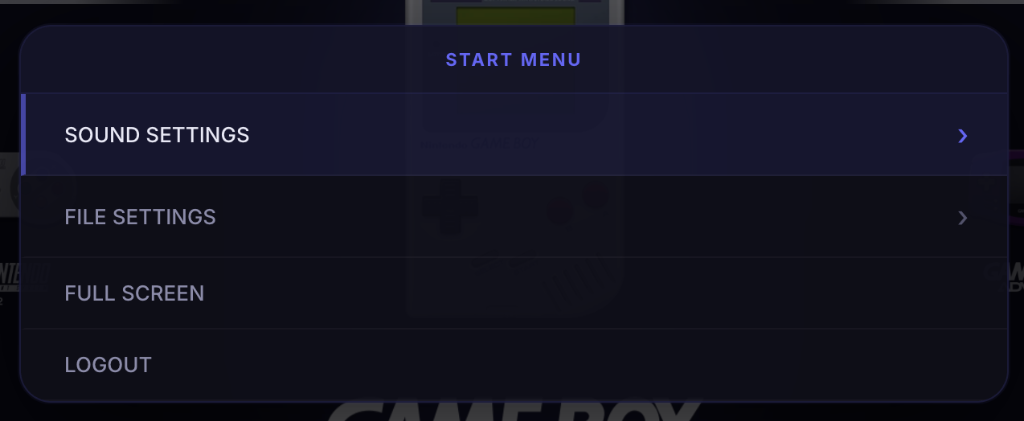
The START MENU contains four options:
| Option | Description |
|---|---|
| Sound Settings | Opens the sound configuration submenu (see below) |
| File Settings | Opens the file and library management submenu (see below) |
| Full Screen | Toggles full-screen display mode for the entire application |
| Logout | Instantly signs you out of your Nostalgia Lab session |
Sound Settings
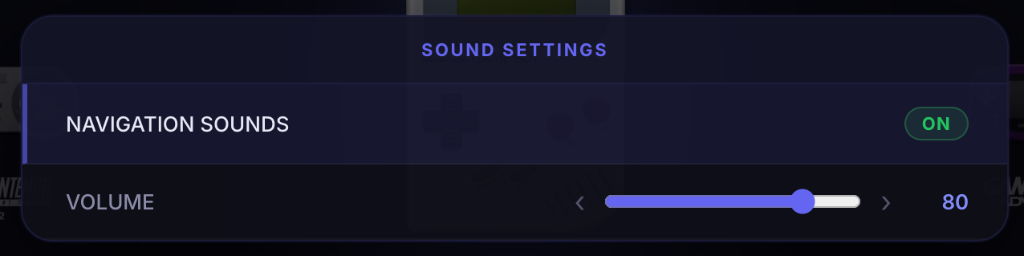
| Setting | Description |
|---|---|
| Navigation Sounds | Toggle ON/OFF for UI navigation sound effects |
| Volume | Adjust the master volume using the slider (0–100) |
File Settings
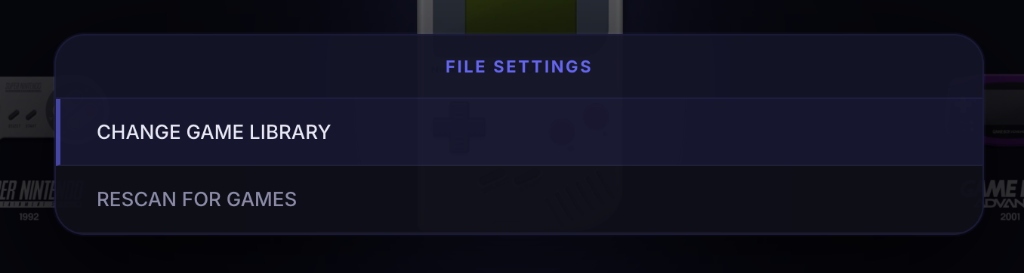
| Setting | Description |
|---|---|
| Change Game Library | Re-select your Game Data Folder if you moved your games to a new location |
| Rescan for Games | Re-scan the current Game Data Folder for any newly added or removed game files |
In-Game Pause Menu
While playing a game, press Shift + Enter (keyboard) or Start + Select (gamepad) to open the in-game pause menu.
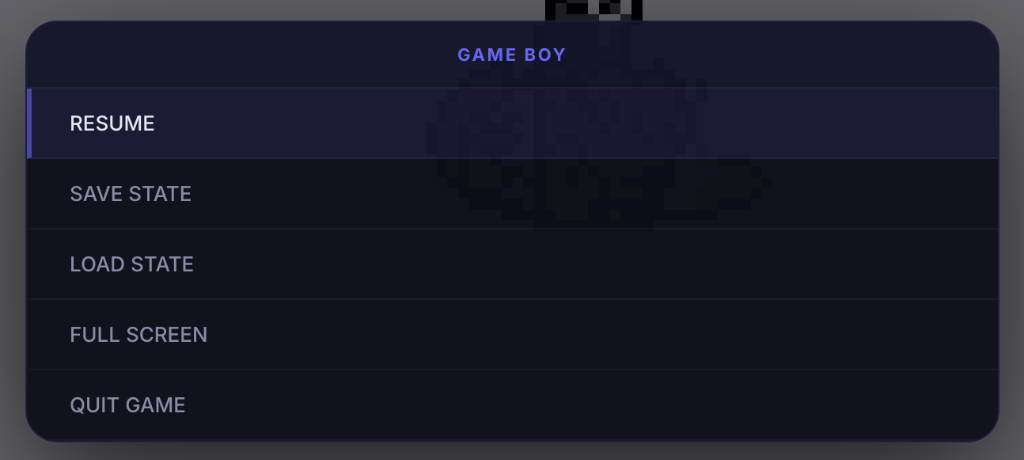
The in-game menu contains five options:
| Option | Description |
|---|---|
| Resume | Close the menu and return to gameplay |
| Save State | Open the save state slot picker to save your current progress (see Saves & State) |
| Load State | Open the load state slot picker to restore a previously saved state |
| Full Screen | Toggle full-screen display mode |
| Quit Game | Exit the current game and return to the system selection carousel |
Keyboard Mappings
Use these keyboard mappings to navigate menus and control games:
| Key | Action |
|---|---|
| Arrow keys | Navigate menus |
Enter |
Open START MENU |
A |
Confirm / Select |
B / Escape |
Back |
Shift |
Options |
PageUp / PageDown |
Switch system |
Shift + Enter (in-game) |
Open / close pause menu |
Gamepad Mappings
Play supports any controller compatible with the HTML5 Gamepad API (including PlayStation DualShock/DualSense, Xbox Controllers, and standard retro USB pads).
| Button | Action |
|---|---|
| A / Cross | Confirm |
| B / Circle | Back |
| X / Square | View media |
| Y / Triangle | Favorite |
| LB / L1 | Previous system |
| RB / R1 | Next system |
| Start | Open START MENU |
| Start + Select (in-game) | Open / close pause menu |
| D-pad / Left stick | Navigate |
Controller Registration
If your gamepad is not registered, connect it and press any button. The HTML5 Gamepad API requires user interaction before exposing controller inputs to the browser.