API Key Management
The GraphQL API is authenticated using personal API keys. You can manage your API key directly from the Nostalgia Search top navigation bar.
The API Key Modal
To manage your key, log in to your account and click the Key icon in the top navigation header.
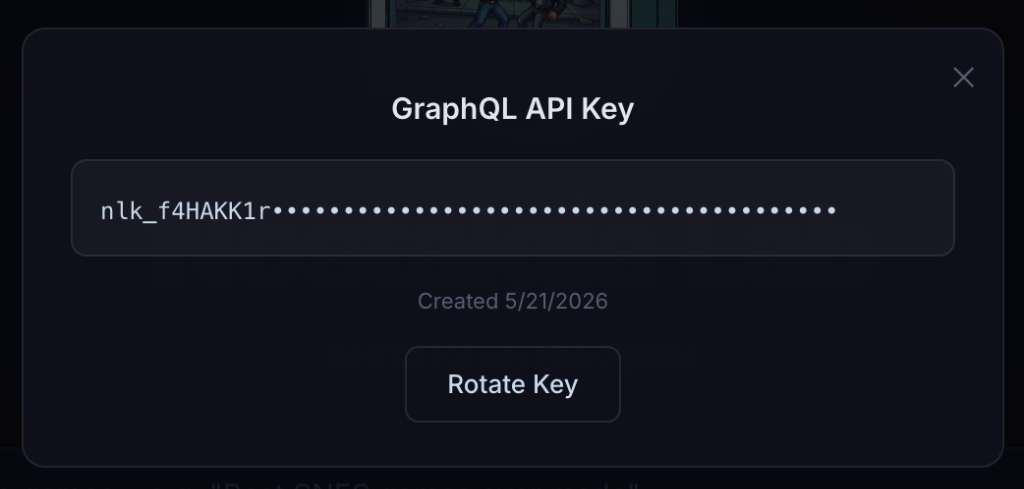
The modal transitions through four operational states:
| Modal State | UI Contents & Descriptions |
|---|---|
| No key | Displays: "No key yet. Generate one to authenticate API requests." with a clickable "Generate Key" button. |
| Key exists | Shows the creation date, a masked string representing the key, and a "Rotate Key" button to invalidate and regenerate it. |
| After generation | Shows: "Key will not be shown again." with your plaintext key in a highlighted amber box and a glowing "Copy Key" button. |
| After copying | The button text changes to a green "Copied!" label for 2 seconds before reverting back. |
Generating & Rotating Keys
- First-Time Setup: Once logged in, open the modal and click "Generate Key". Copy the key immediately; the raw key is hashed using SHA-256 server-side, meaning it can never be retrieved again if lost.
- Rotation: If you lose your key, or suspect it has been compromised, click "Rotate Key". This instantly invalidates the old key across the API gateway and generates a fresh one.
Key Troubleshooting
| Problem | Cause | Solution |
|---|---|---|
| Key shown as "exists" but you lost it | The raw key is only shown once at generation for security and is never stored on our servers. | Click the "Rotate Key" button inside the modal to generate a new key. The old key will be revoked immediately. |
| GraphQL API returns 403 Forbidden | The header is missing, formatted incorrectly, or the key was revoked during rotation. | Verify that your HTTP header is Authorization: Bearer nlk_your_key (ensuring a single space after "Bearer"). Verify you are using the newest key if you recently rotated. |