Save States and SRAM Persistence
Nostalgia Play supports client-side saves stored directly on your computer's hard drive. Your game progress is completely under your own control.
How Saves Work
Your saves live inside a hidden folder .nls/saves/ at the root of the local folder you selected during library setup.
- Directory structure:
.nls/saves/{systemId}/ - State files (
.slot{N}.state): The raw emulator state snapshot for slotN. - SRAM files (
.srm): Battery-backed save data (representing your traditional in-game cartridge saves). - Metadata files (
.meta.json): Timestamps, screenshots, and slot-specific information.
Automatic SRAM Injection
When you boot any game, the emulator looks for a matching .srm file in your saves folder. If found, it automatically injects the SRAM data 3 seconds after boot, instantly restoring your in-game cartridge progress without needing to load a state slot manually.
Pause Menu & Slot Selection
To save your game at any moment or load a previously saved state, open the in-game pause menu:
- Keyboard Shortcut: Press
Shift + Enter - Gamepad Shortcut: Press
Start + Selectsimultaneously
From the pause menu, select Save State or Load State to open the slot picker:
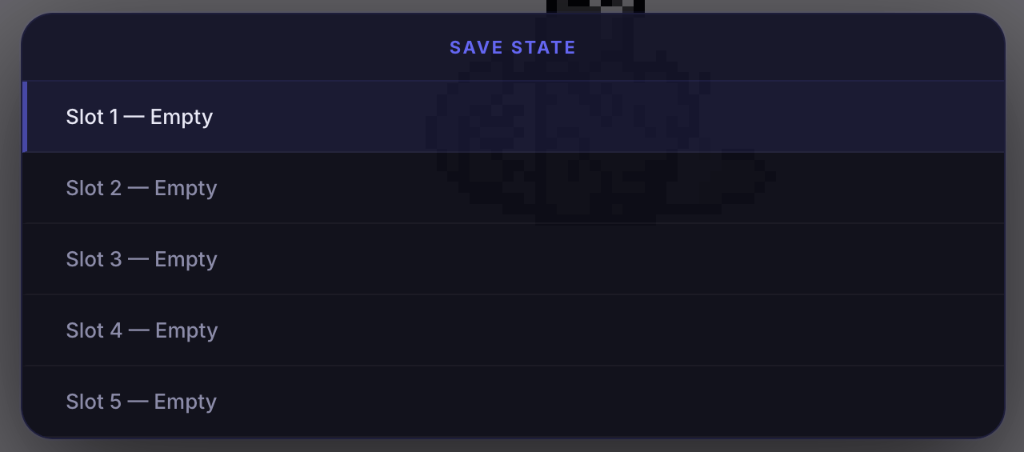
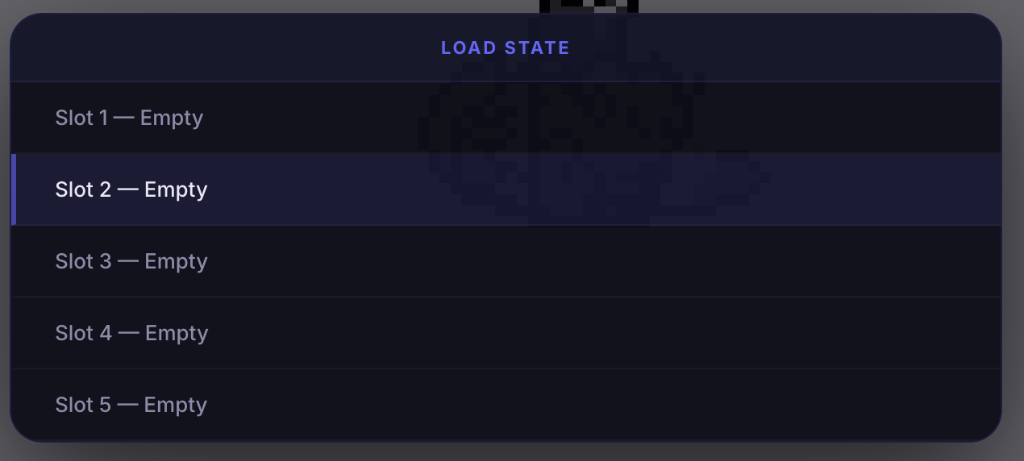
Each game supports up to 5 independent save slots. The menu highlights slot statuses:
- Used Slot: Displays the save date and time (e.g.,
Slot 1 — Jan 5, 3:42 PM). - Empty Slot: Labeled as empty (e.g.,
Slot 1 — Empty).
Managing Your Saves
Since saves reside locally on your filesystem, you have total access to them:
- Backup: Simply copy the
.nls/saves/folder to a backup disk or cloud drive. - Delete Individual Saves: Delete the specific
.stateand.meta.jsonfiles for the unwanted slot inside the system folder. - Wipe System Saves: Delete the folder named after the system ID (e.g.,
snes/) to clear all saves for that system.